

Writing a library does not switch your assessments over to it. Until you set one as your default or name it when ordering, your assessments keep drawing from the Evalingo standard questions, exactly as before.
Libraries cover speaking and writing. Reading and listening always use Evalingo’s own questions.
What a library is
- It holds questions in one language. The language is set when you create the library and cannot be changed afterwards.
- It belongs to your account alone. Your questions are never shown to another customer, and no other account can draw from your library.
- It can be used by default for its language, or named on individual assessments.
The shape of an assessment does not change
Every assessment has the same structure, whichever library it draws from. That fixed shape is what makes two candidates’ scores comparable. What varies is which questions fill each slot, drawn at random each time.
A library of 200 questions produces the same six-question assessment as a library of six. The larger one simply repeats itself less across candidates.
What a library needs before you can use it
At minimum, enough published questions to fill every slot: two conversation starters, one extended response, one reading passage, one casual writing task and one extended writing task. Readiness is counted per section rather than as a total, so fifty essays and no reading passage still cannot build an assessment. The library page tells you exactly which sections are short and what would fill them.Creating a library
1
Open Libraries
Go to Libraries in the sidebar, then New library.
2
Choose the language
This is fixed once the library exists, so create a separate library for each language you assess in.
3
Name it
Use a name your team will recognize, for example “Academic English” or “Warehouse roles”.
4
Describe it (optional)
Explain when to use it. This is for your team, and candidates never see it.
Writing questions
Open the library and choose New question. Question type is the first thing you pick, and it decides everything else: which section the question lands in, how long the candidate gets, and what their response is scored on. The editor shows the brief for whichever type you choose, including what it measures and what a good one looks like.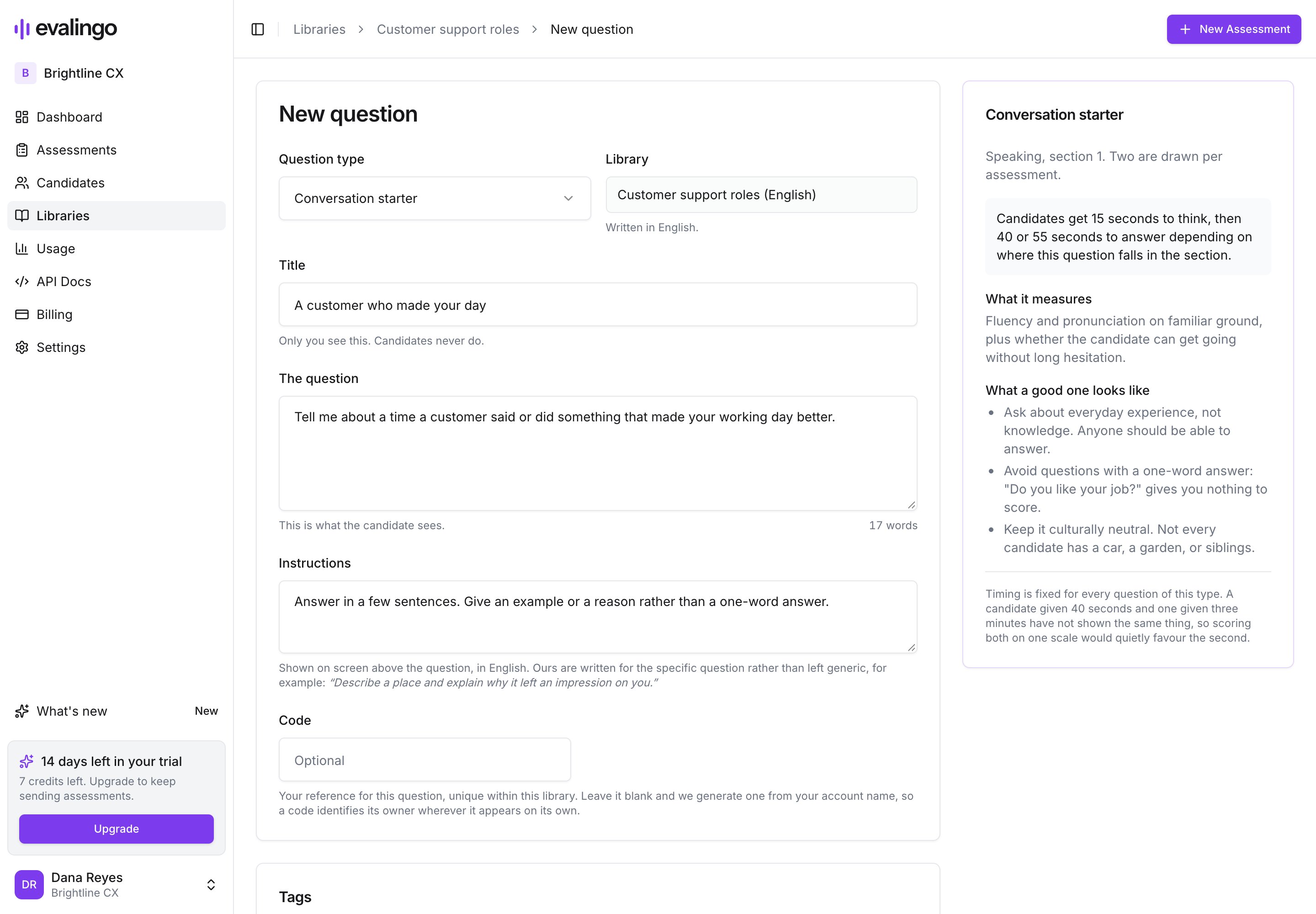
The question editor. The panel on the right is the brief for the chosen question type.
Timings are fixed per type and cannot be changed. A candidate given 40 seconds and one given three minutes have not demonstrated the same thing, and scoring both on one scale would quietly inflate the second.
The fields
- Title is how you will recognize the question in your library. Candidates never see it.
- Question is what the candidate is actually asked.
- Instructions appear on screen above the question. They are prefilled with a sensible default in your library’s language. Rewriting the default is worth the minute it takes: a good instruction restates the task in terms specific to that question, and the editor shows one of ours alongside as an example.
- Code is optional. Leave it blank and we generate one that names your account, like
ACME-ES-004. If you have your own numbering, use it instead. - Tags group the question inside your library.
Reading fluency passages
Aim for 60 to 90 words. The editor counts as you type. A passage that cannot be read comfortably in 50 seconds turns the section into a test of reading speed, and a candidate cut off mid-sentence scores as hesitant rather than as a capable reader. Ordinary vocabulary works best, since the section measures how words are said rather than whether they are known. Candidates never hear this passage read to them, so there is nothing for them to imitate.Publishing
Questions start as drafts. Only published questions are ever put in front of a candidate, so a library part-way through being written is safe to leave as it is. Anyone on your team can write and edit drafts. Publishing and unpublishing are limited to admins and owners, in both directions: publishing puts a question in front of real candidates, and unpublishing can take a library below the minimum and stop assessments in that language.Audio
We can generate a spoken recording of a question, so candidates hear it as well as read it. This is deliberate rather than automatic. Open a published question and choose Generate audio, and you can play the clip back in the editor to hear exactly what a candidate will hear.- Editing the wording of a question that has audio makes the clip outdated, and your library flags it as
Audio outdated. This matters more than it sounds: the candidate answers what they heard while being scored against what is written. Regenerate the clip, or undo the wording change. - Reading fluency passages never get audio. Playing a native reading first would let the candidate imitate exactly what that section measures.
Tags
Tags group and filter questions inside your libraries. They are shared across all of them, so “Nursing” means the same thing in your English library and your Spanish one.Tags do not affect what an assessment draws. They organize your questions. The library is what decides which questions a candidate can be asked.
Using your library
As the default for a language
On the library page, choose Use by default. Every assessment in that language then draws from it unless another library is named when ordering. The button stays unavailable until the library holds enough questions to build an assessment, so a half-written library cannot quietly start answering for you. Stop using by default is always available and returns that language to the Evalingo standard questions. Nothing is made the default automatically, including the first library you create.On one assessment at a time
When creating an assessment, pick the library from the dropdown. It lists your libraries for that language alongside the Evalingo standard one, with your default marked and anything not yet ready marked Not enough questions. Choosing the Evalingo standard library explicitly is how you say “use the standard questions for this one” when you have a default of your own.Through the API
A library’s id is the value you send aspromptSetId. Every library shows its id on the Libraries page with a button to copy it, or call GET /v1/libraries to list everything you can draw from along with whether each is ready.
promptSetId out to use your default library, falling back to the Evalingo standard questions if you have not set one.
Full reference at evalingo.ai/docs.