

Two ways to send it
Let Evalingo email them. This is the default. When you create an assessment we send an invitation with the link, what the assessment covers, roughly how long it takes, and when it expires. You can add a custom message. Send the link yourself. Turn off the invitation email when creating the assessment, then copy the link. Useful if invitations should come from your ATS, or if you want to write a personal note.Reminders
When Evalingo sent the invitation, we also remind a candidate who has not started: once two days after the invite, and once in the last day before the link expires. Never after expiry, and never twice. You can turn automatic reminders off under Settings → Defaults. To nudge someone yourself, open the assessment and choose Send reminder, or select several on the assessments list and remind them together. This works for any assessment that has not been started and has not expired, including ones created through the API or whose link you sent yourself.Candidates invited through the API are not reminded automatically, since your ATS handles that communication. Manual reminders still work for them.
Extra time
If a candidate needs more time as an accommodation, choose 25%, 50% or 100% extra time when creating the assessment. It stretches every clock in every skill: thinking time, writing time, reading time. It never changes how long a spoken answer records or how fast a listening clip plays.The language candidates see
The questions are in the language you are testing. The buttons, timers and instructions around them follow the candidate’s own language, taken from their browser, and they can switch it on the welcome screen before anything starts. Someone sitting an English assessment who reads little English can still operate it, so the result measures their English rather than their ability to work the screen.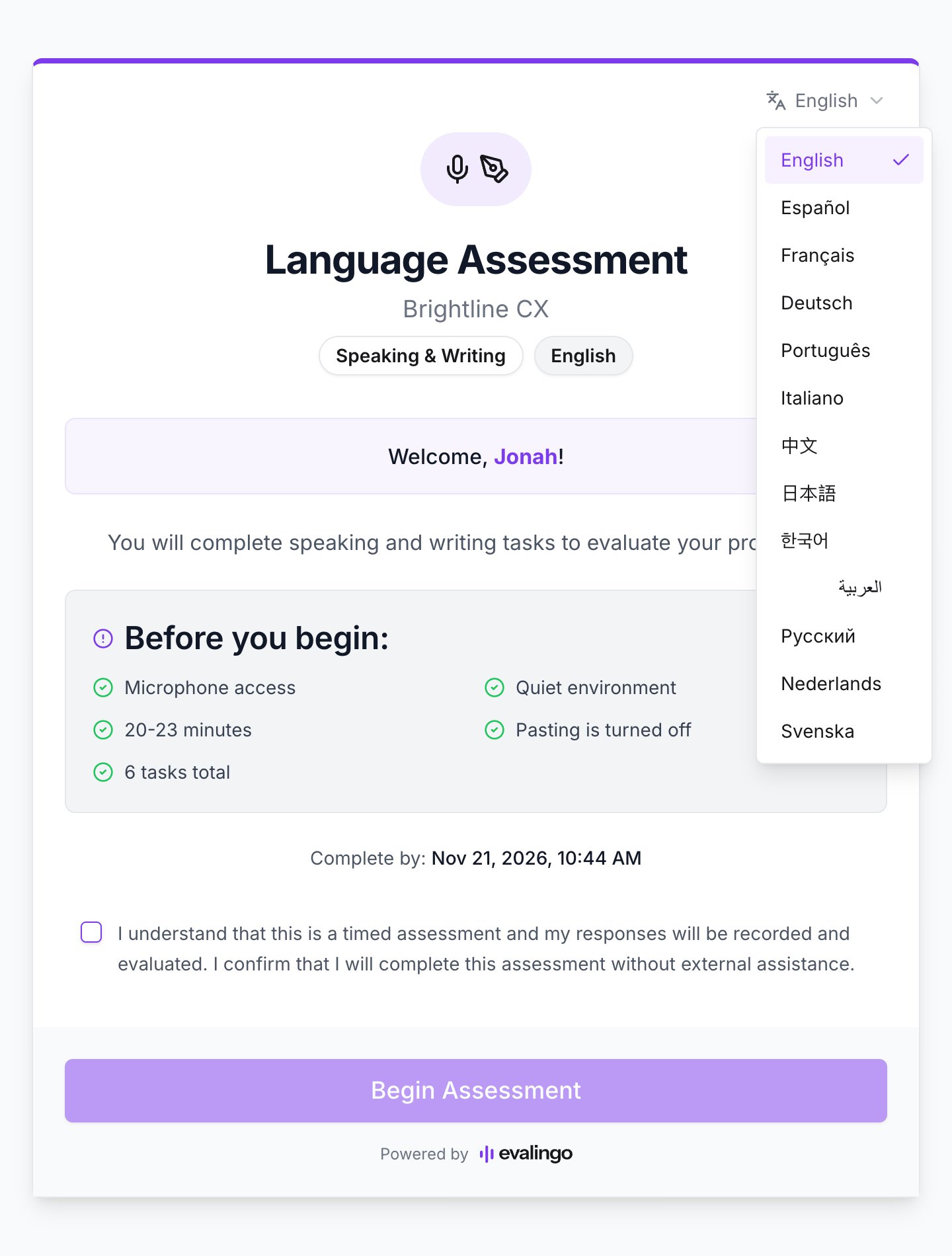
The language switcher on the welcome screen. Each language is listed in its own script, so a candidate can find theirs without reading the rest of the page.
What to tell candidates
A few sentences up front prevent most support questions:- Find a quiet room with a decent internet connection. Headphones with a mic work better than laptop speakers.
- Recording starts and stops automatically. There is no record button, and answers cannot be re-recorded.
- It is short. Each skill takes 5 to 16 minutes.
- There is nothing to prepare. The questions are everyday topics, not specialist knowledge.